Yo, what is up, elite gamers? Ready to dominate Verdansk and Rebirth Island with some absolute uradhura performance? If you are running Warzone Mobile on a mid-range phone in 2026, you already know the struggle. While games like PUBG Mobile or Mobile Legends run like butter on almost anything, Warzone Mobile is a whole different beast. It runs on the heavy, console-grade IW engine, which means it can turn your mid-range processor into a pocket-sized barbecue grill if your settings are not optimized.
But do not sweat it! We have spent hours testing, tweaking, and thermal-throttling our mid-range devices to bring you the ultimate, definitive graphics guide. Here is how to lock in a rock-solid, lag-free 60 FPS and secure those high-kill victories without melting your phone.
The Core Problem: Why Warzone Mobile Lags on Mid-Range Chips
Before we dive into the settings, let’s bust a major myth. Most generic guides tell you to just “set everything to low and play.” That is lazy advice, and it actually does not solve the root issues unique to Warzone Mobile. Here are the two real culprits behind your frame drops:
- On-Demand Texture Streaming: Unlike traditional mobile games that download all assets upfront, Warzone Mobile streams high-resolution textures dynamically over your internet connection while you play. If your connection hiccups, or if your storage drive cannot keep up with writing these files, you get massive micro-stutters.
- Thermal Throttling: Mid-range processors (like the Snapdragon 7 Gen series or MediaTek Dimensity 8000 series) have excellent peak performance but terrible thermal sustainability. After 10 minutes of intense gunfights, the chip heats up, and your phone automatically cuts performance by 30-40% to cool down, causing sudden FPS drops.
Our settings are specifically designed to minimize VRAM usage, bypass asset streaming bottlenecks, and keep your phone cool for back-to-back matches.
The Best Warzone Mobile Graphics Settings for Mid-Range Phones
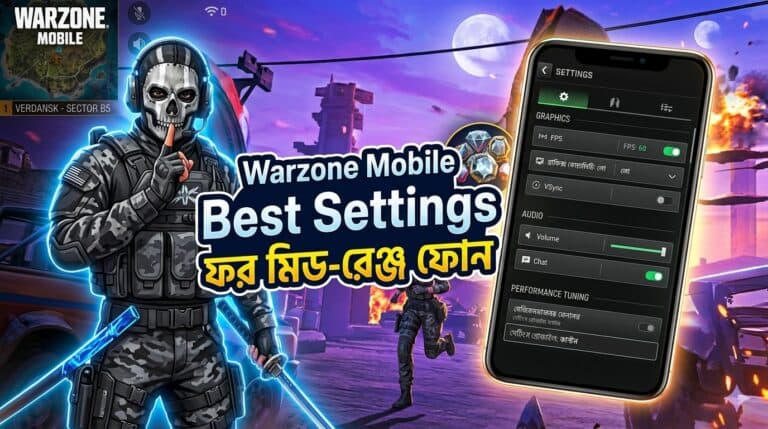
Go to your in-game settings menu, head over to the Graphics tab, and apply these exact configurations immediately:
1. Performance Settings
- Visual Quality: Low (or Min)
Why? Setting this to “Medium” or “High” forces the game to stream heavier asset files. On a mid-range phone, “Low” keeps the game engine running efficiently without overloading your GPU’s VRAM. - Frame Rate Limit: 60 FPS (or High)
Why? Never select “Uncapped” on a mid-range device. Uncapped forces your phone to render as many frames as possible (e.g., hitting 75-80 FPS for a few seconds), which causes instant overheating. Locking it at 60 FPS ensures a stable, consistent frame rate and prevents rapid thermal throttling. - Field of View (FOV): 90
Why? While 120 FOV gives you insane spatial awareness, it forces your phone to render up to 30% more objects and players on the screen at the same time. For mid-range chipsets, 90 FOV is the perfect sweet spot between a wide view and stable frame rates. If you still experience lag during chaotic drop zones, drop this to 80.
2. Details & Post-Processing Settings
- Allow High-Res Asset Streaming over Mobile Data: OFF
Why? Keep this toggled off even if you have unlimited data. Streaming assets during a match adds dual stress to your processor (handling network packets and rendering at the same time). Only let the game stream assets when you are on a stable Wi-Fi connection. - Bloom: OFF
Why? Bloom adds pretty light glows around sunbeams and explosions, but it eats up valuable GPU cycles. Turn it off for cleaner visibility and better performance. - Physics & Effects: LOW
Why? Ragdoll physics and complex smoke plumes look cool, but they will completely tank your frames during close-range squad fights. Keep this low to ensure your screen doesn’t freeze when the grenades start flying.
Pro-Tips to Keep Your Gameplay Smooth and Lag-Free
Adjusting your in-game settings is only half the battle. To get that true, dashing, lag-free experience, you need to optimize your device’s environment. Apply these expert-level tweaks:
1. The “Warm-Up” Trick for Asset Caching
Because of the asset streaming system, your first match of the day will always feel laggy. Do not jump straight into a Battle Royale! Instead, play 1 or 2 quick Multiplayer matches (like Team Deathmatch or Domination) on smaller maps. This forces the game to cache essential textures into your phone’s storage. Once your cache is warmed up, your Battle Royale matches will run significantly smoother.
2. Kill the “Virtual RAM” (RAM Expansion)
Almost every modern mid-range phone comes with a feature called “Virtual RAM” or “RAM Plus” enabled by default. This feature uses your slow internal storage as extra RAM. While it sounds great on paper, it actually introduces micro-stutters in high-demand games like Warzone Mobile because storage memory is vastly slower than physical RAM. Go to your phone’s system settings, search for RAM expansion, and turn it off completely.
3. Keep It Cool
If you play in a hot room, your mid-range phone will throttle within minutes. Play directly under a high-speed fan, or invest in a cheap magnetic phone cooler. Keeping your device’s backplate cool is the single most effective way to maintain a locked 60 FPS for hours.
How Does Warzone Mobile Compare to Other Mobile Giants?
If you love competitive mobile gaming but find Warzone Mobile’s hardware demands too exhausting for your current setup, there are plenty of highly optimized alternatives. For instance, you can grab some PUBG Mobile UC to dive into a perfectly optimized battle royale experience that runs flawlessly on almost any mid-range device. Alternatively, if fast-paced, clutch-heavy team fights are your jam, grab some Mobile Legends Diamonds and dominate the lanes with zero lag and instant response times.
But if you are determined to conquer the Warzone, keeping your settings optimized is your ticket to the top of the leaderboard. Do not forget to check out our exclusive VIP Offers to elevate your gaming experience across all your favorite titles!
Frequently Asked Questions (FAQ)
Will lowering my graphics settings make it harder to spot enemies?
Actually, no! In competitive gaming, lower graphics settings often remove visual clutter like dense foliage, heavy shadows, and realistic smoke effects. This makes enemy character models stand out much more clearly against the background, giving you a distinct competitive advantage.
Can I run Warzone Mobile at 120 FPS on a mid-range phone?
In 2026, most mid-range chipsets (like the Snapdragon 7 Gen 3) are technically capable of pushing high frame rates, but they cannot sustain 120 FPS due to thermal limitations. It is highly recommended to target a stable, locked 60 FPS for consistent, competitive gameplay.
Why does my game still lag even on the lowest settings?
If you have lowered all settings and still experience heavy stuttering, the bottleneck is likely your storage speed or thermal throttling. Ensure your phone has at least 15-20 GB of free space, disable virtual RAM, and let your phone cool down before playing.